
How to Make a Cinematic Music Video Cover with AI
Create a cinematic music video cover with SondoAI. Shape the scene with character references, expressive lighting, balanced composition, and readable titles.
A music video cover represents a song before playback. It introduces the characters, setting, and visual mood in a single image. A cinematic treatment brings those elements together through deliberate framing, light, and typography. The process begins with a clear direction, develops through image concepts, and ends with a cover that remains readable in use.
What Makes a Strong Cinematic Cover?
A strong cover has a clear focal point, recognizable characters, and a visual connection to the music video. Facial expressions and spatial relationships should communicate the intended mood without a written explanation. Lighting needs to feel coherent across the scene, and any title should remain readable when the image is reduced. Decorative effects should support those essentials.
How to Create a Cinematic Cover in Four Steps
Step 1: Define the Scene and Visual Mood
Identify the emotion the cover should communicate, then choose a setting and a small cast that fit the song. A concise image brief should establish the subject, framing, lighting, and title treatment. Keep the intended moment specific enough to describe through posture, expression, and gaze.
Creators can upload a clear character reference and add a description in Sondo’s character library to establish the music video’s protagonist. Matching appearance, clothing, and emotional tone gives the video and its cover a shared visual identity.
Step 2: Generate the Cover in SondoAI
For a two-person music video, creators can add a separate supporting-character reference to establish both identities.
In the music video editing interface, open Settings and enter a cover prompt. Identify the characters through their reference-image labels, then describe the setting, their positions, and the story moment. Add framing, lighting, and title instructions as needed, then generate the cover. Review the result and revise unclear directions before generating another version.
Step 3: Adjust Composition, Light, and Lettering
Review the selected image for believable proportions and a coherent foreground and background. Specify the intended crop, body orientation, and direction of attention when a figure’s placement needs clarification. Check for duplicated people, unintended reflections, and lighting that contradicts the room.
Give the title a readable position away from faces and important objects. Check the exact wording, letter shapes, and contrast. Further image edits should focus on the details that need improvement; typography or layout corrections can also be completed in a separate image editor.
Step 4: Check the Cover at Viewing Size
Inspect the image at full size, then view it as a small preview. Facial expressions, the main subject, and the title should remain understandable. A cover that relies on tiny details may need a simpler composition or stronger contrast.
Sondo’s editing workflow allows creators to change the cover image through Settings. Review the result alongside the video to confirm that the characters and atmosphere remain consistent.
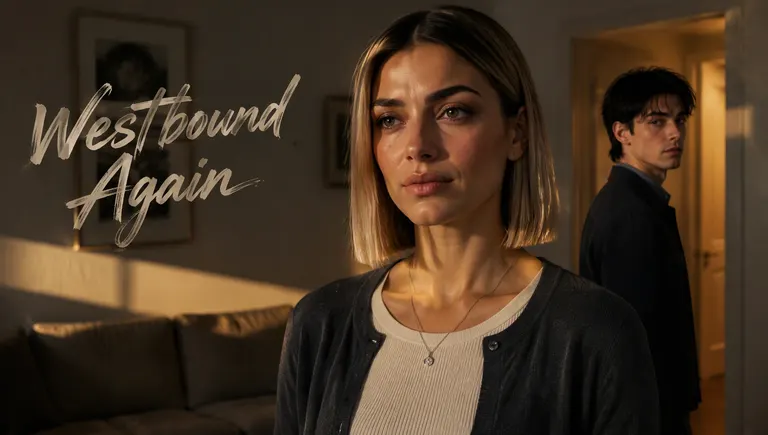
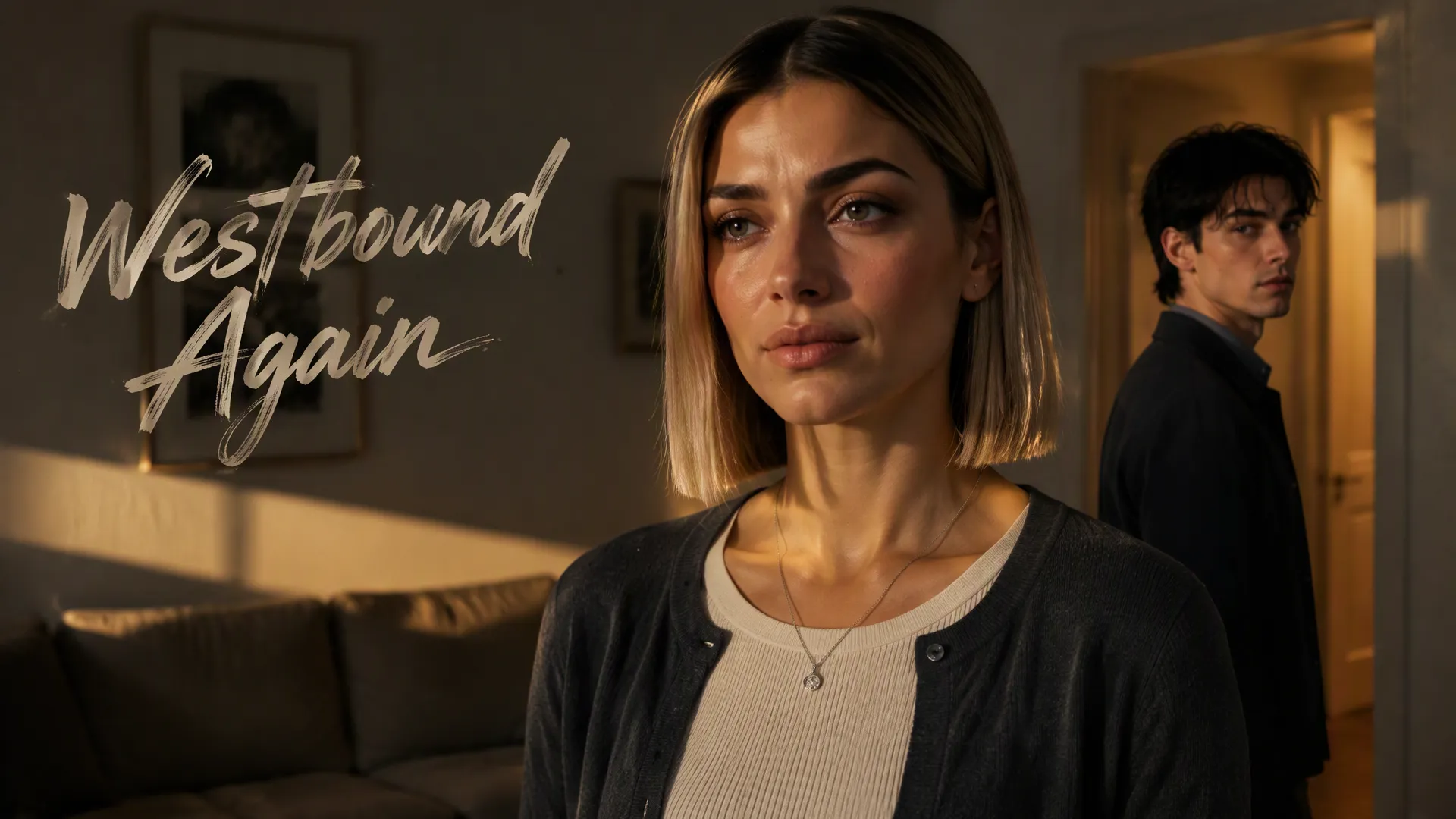
The supplied artwork shows two people inside a present-day Brooklyn apartment. A tearful woman occupies the foreground, while a man near the doorway looks back with visible sadness. Their positions create depth and suggest emotional distance within one continuous room. In the cover prompt, labels such as female lead (reference image 1) and male lead (reference image 2) identify who appears; the scene description establishes their placement and expressions.
Warm hallway light crosses the muted living room and empty sofa. Close framing emphasizes faces and posture. Weathered, brush-like lettering sits against the darker wall on the left, keeping the title separate from the characters. The composition gives the cover a clear subject, a believable setting, and a restrained sense of unfinished conflict.
Final Checks Before Publishing
Preview the cover on its intended platform, where cropping may differ from the original image. Confirm that the title is spelled correctly, the characters remain visible, and the image accurately represents the video. Keep the finished cover file available for the publishing workflow.
Create an AI music video with Sondo and complete its visual identity with a cinematic cover. A focused scene, recognizable characters, and intentional lighting provide a practical foundation.
FAQ
What makes a music video cover look cinematic?
Deliberate framing, coherent lighting, and expressive character placement establish a cinematic look. Typography and texture should support the song’s mood.
Does a music video cover need text?
Text is optional. A short song title or artist name can identify the release when it remains readable without obscuring the main subject.
Can the cover image be changed in Sondo?
Yes. Creators can enter a cover prompt on the Settings page to generate a new cover image.