
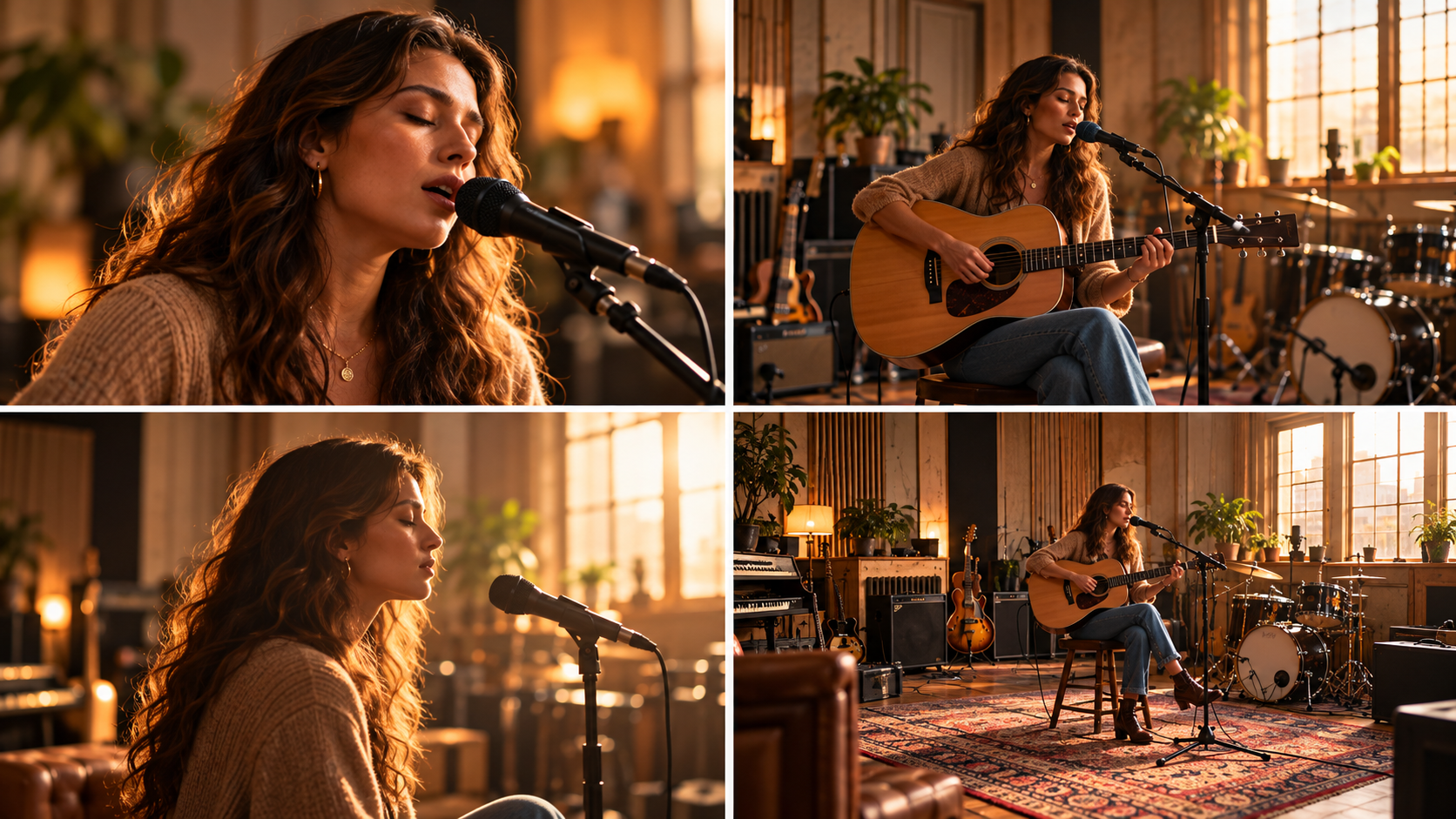
How to Edit a One-Location AI Music Video Storyboard in Sondo
Edit a one-location AI music video storyboard in Sondo. Refine character actions, framing, and camera directions to give each shot a clear role in the story.
A music video can stay in one room and still develop visually. The interest comes from what the character does, what the camera reveals, and how one shot leads into the next. A wide view can establish the space, while a closer view brings attention to a change in expression.
In Sondo, you can edit storyboard descriptions and regenerate individual shots. Use that control to give each shot a distinct purpose while keeping the setting recognizable. Start by reviewing the generated sequence, then decide which descriptions need more specific direction.
Give Each Shot a Clear Purpose
Read the storyboard from beginning to end before editing individual descriptions. Ask what the viewer learns from each shot. One might introduce the location, another show the character beginning an action, and a later shot reveal the response.
Look for shots that repeat the same information. If several descriptions place the character in an identical pose, give one of them a new action or a different point of attention. Keep the progression simple enough to follow alongside the song. Each shot should contribute to the scene's development.
Consider a singer waiting beside a window. The opening view establishes the room, another shows the singer picking up a letter, and a close-up reveals the reaction. Each shot adds information.
Edit the Character's Action
Open the description for the shot you want to refine and make the intended action clear. Describe what the character does and what changes within that moment. A specific action gives the shot a focus that a general mood alone may leave unclear.
Keep each description centered on one main action. Several unrelated movements can make the scene difficult to read. Check how that action connects with the shots before and after it, especially when an object, gesture, or change in position carries the story forward.
Check where an action begins and ends. If the character finishes one shot holding an object, the next description should acknowledge it. Small continuity decisions help the scene feel connected. Keep the character's starting position clear.
Vary the Framing and Camera Direction
Different views can reveal new information within the same location. A wider shot shows the character's relationship to the space. A medium view makes an action easier to follow, while a close-up can emphasize an expression or a meaningful detail.
In Sondo, edit camera direction in a shot description to guide how the scene is presented. Choose a steady view or one clear movement that supports the action. Give the viewer time to understand the change in focus. A new angle should have a reason within the sequence.
Match the amount of movement to the moment. A restrained passage may benefit from stillness, while a change in musical energy can support a more active view. Keep the character readable throughout.
Keep the Setting and Character Recognizable
As you edit, repeat the important details that define the location. Keep the room layout, lighting direction, and key objects consistent in your descriptions. Review whether the character's position makes sense when the camera changes angle.
You can also reuse a saved character reference in Sondo's Character Library. Upload a reference image and add a detailed description of the character's appearance, clothing, and expression. Carry those details into the shot descriptions, then check the generated results for changes that distract from the story.
For the window scene, keep the window in a consistent position and retain the same light source. Changing the framing can reveal another part of the room while preserving its identity.
Regenerate the Edited Shots and Review the Sequence
After refining a description, regenerate the affected shot and review it alongside the surrounding material. Check whether the new action or framing serves the purpose you intended. Watch the sequence with the song playing so you can judge its overall flow.
If a shot still feels out of place, return to the action, camera direction, and setting details in its description. Make a focused adjustment, then review the result again. Keep your attention on how the sequence develops within the location and whether the character's performance remains easy to follow.
Compare the revised shot with your intention, then consider the whole sequence. A visually striking result can still need adjustment if it interrupts the story.
FAQ
Can I edit the storyboard in Sondo?
Yes. You can refine individual storyboard descriptions to adjust actions, scene details, and camera direction.
How can I make shots feel different in the same location?
Vary the framing, character actions, and points of attention while keeping the setting's key details consistent.
Do I need to regenerate the whole video after changing one shot?
You can refine and regenerate individual shots, and re-merge them. Review the updated shot with the surrounding sequence to check continuity.