
Sondo AI FAQ for Music Video Creators
A complete beginner-friendly guide to creating and editing AI-generated music videos with Sondo AI Web. Learn how to use Sondo’s professional web editor to create polished videos optimized for YouTube, TikTok, Instagram Reels, and more.
1. How can I fix login issues?
If you're unable to log in to the web version, please try clearing your browser cache or switching to a different browser before logging in again.
If the issue persists, please contact our support team via email for assistance.
2. What is the maximum character limit for music video descriptions?
Sondo AI currently supports up to 2000 characters for video generation prompts.
If this feature is not available on your account, please clear your cache and log in again to refresh the latest version.
3. What video aspect ratios are supported?
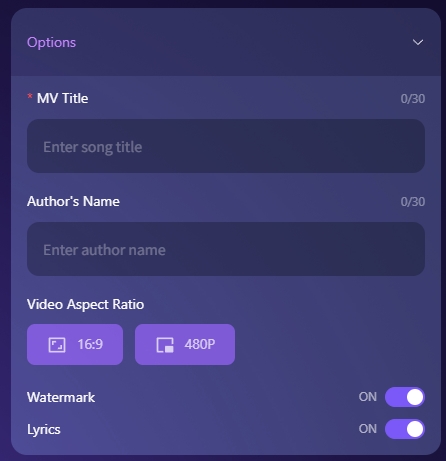
Sondo currently supports both 16:9 and 9:16 video formats.
16:9 is ideal for YouTube, desktop viewing, cinematic storytelling, and traditional music videos.
9:16 is optimized for mobile-first platforms such as TikTok, Instagram Reels, and YouTube Shorts.
Before generating your video, you can select your preferred aspect ratio in the Options section.
Please note that the aspect ratio cannot be changed after the video has been generated.
4. Can I edit the storyline if I'm not satisfied with it?
Yes. After the video script is generated, you can directly edit the storyline description in the Storyline section on the Deep Thinking page.
Once you finish editing, click the Create button to create your video.
5. How to change roles in video clips?
Step 1
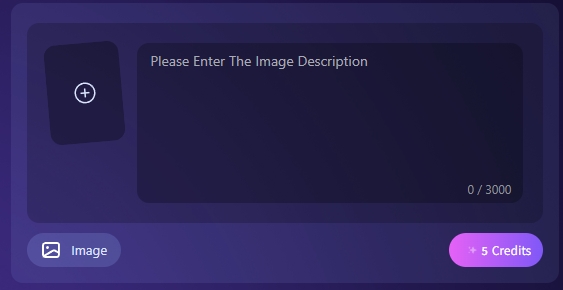
In the Edit MV interface, switch to Image Mode, click the "+" button to upload an image, and enter an image description prompt.
Then click the Create button to generate the role.
Step 2
Select the video clip you want to modify on the timeline (in Video Mode at the bottom left) .
Drag the character image from the Image Resource Library into the image box, then click Create to regenerate the video clip with the new role.
6. How to edit lyric subtitles and titles?
The Sondo professional editor supports adding, deleting, and modifying lyric subtitles and titles.
To make edits, simply click on the subtitles directly in the preview window and update the text as needed.
7. Can I rearrange clip order in the editor?
Yes. Sondo allows you to freely drag and reorder video clips directly on the timeline.
8. How to edit video clip content in the editor?
Click on the video clip you want to modify, enter your updated prompt or description, and click the generate button.
The newly generated clip will appear in the Video Clip Library at the top left.
Simply drag the new clip onto the timeline to replace the original clip.
9. How to save my edits?
After completing your edits, click the Export button.
The system will automatically generate and export the updated version of your video.
10. Will my edits be saved if I leave the website or log out before exporting?
Your generated images and video clips will remain saved in the resource library.
However, the timeline layout will reset to its default state.
To avoid losing your editing progress, we recommend exporting your project as soon as your edits are complete.
Ready to Create Your Own AI Music Video?
Try Sondo AI today and bring your music visuals to life in minutes.